Files stay in your browser
Photos are decoded and created locally with no upload.
Free browser-based HEIC to JPG converter
Convert HEIC to JPG (JPEG) online for free. Turn iPhone photos into compatible JPG files in seconds, with no signup or upload.
HEIC → JPG / JPEG
Add one or more images, then download each converted file to your device.
Files never leave your browser
A private converter
Convert one photo or a batch locally, check every preview, and download JPG copies that work across websites, apps, and older devices.
Photos are decoded and created locally with no upload.
Select multiple photos and download each JPG copy.
JPG works across websites, forms, Windows, and older apps.
Three clear steps
Choose your photos, review the previews, and download the result. JPEG and JPG use the same image format; this page creates .jpg files for broad compatibility.
Select HEIC or HEIF files from your device. You can use the file picker to choose several iPhone photos at once, or drag files into the converter. JPG, JPEG, and PNG files are also accepted when you want to normalize a mixed batch. The originals remain in their current folder while the browser prepares a separate output.
Check each thumbnail before exporting. The preview makes it easy to spot a sideways image, an accidental duplicate, or a photo that did not decode correctly. In a batch, the original filename is used as the starting point for the JPG download, so you can match each converted copy to the source without renaming everything first.
Download the JPG copies and open one or two before uploading them elsewhere. Your browser saves the files through its normal download location; nothing is written over the HEIC originals. For a large set, download in smaller groups and keep the source folder until the website, form, or recipient confirms that every image arrived.
Compatibility output
Keep the original. Share the copy.
A converted JPG is ready for profile uploads, receipt submissions, email attachments, and documents. Check its dimensions and clarity first, then compress a copy only when the destination has a size limit.
Convert your HEIC photos to JPG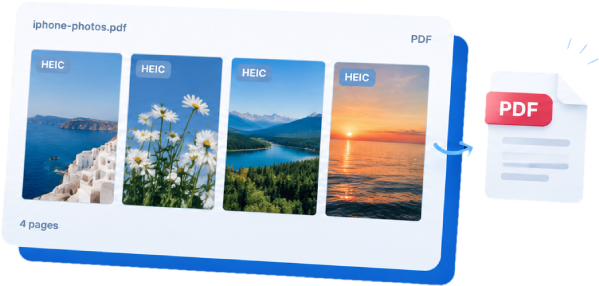
A practical guide
HEIC saves space on iPhone, but some websites, forms, Windows apps, and older image editors still expect JPG. Converting HEIC files to JPEG (.jpg) creates a practical compatibility copy while leaving the original photo unchanged.
The converter runs in your browser and creates the output on your device. That makes it useful for a work form, a school portal, or a family upload where you want a predictable JPG file without creating an extra copy on a conversion server. You can keep the HEIC in your photo library and use the exported file only for the destination that needs it.
JPG is a lossy format designed for broad sharing. Keep the original HEIC for your photo library and use the JPG copy when a website, document, or recipient needs a format that opens almost everywhere.
Results and use cases
A HEIC photo around 2 MB may become a JPG of roughly 2 to 5 MB, depending on the scene, dimensions, and image quality. JPEG uses different compression, so the output can be larger even when it looks nearly identical at normal viewing size. The converter preserves the image dimensions rather than shrinking a photo just to change its extension.
For a form or website upload, the default JPG is usually the practical choice: it keeps enough detail for an everyday photo while opening in nearly every browser and operating system. If a destination has a strict size limit, resize or compress a copy after conversion and keep the original HEIC as your archival version.
Conversion does not improve a blurred or low-resolution source. Review a representative output at 100% zoom, especially when the image contains small text, receipts, or screenshots. If color or orientation matters, compare the JPG with the original before sending it and keep the source until the upload is accepted.
Web forms often reject HEIC with an unsupported-format message even when they accept ordinary image uploads. A JPG copy meets the expected file type and can be selected from the browser's download folder without changing the original in Photos.
Windows applications and older editing tools may show a blank preview or ask for an additional codec. Sending a JPG avoids that compatibility step when the recipient only needs to view, annotate, or place one photo in a document.
When exporting from iPhone, you can keep High Efficiency for new camera captures and convert only the photos that need to leave the Apple ecosystem. This selective workflow preserves storage savings while giving each destination the format it understands.
Good to know
Yes. JPEG and JPG are the same image format; only the filename extension differs. This converter creates .jpg compatibility copies.
Yes. Select multiple HEIC or HEIF photos, review the thumbnails, and download each converted JPG.
No. HEIC decoding and JPG creation happen in your browser. Your files stay on your device.
No. Conversion creates a new JPG copy and does not modify the original HEIC file.
JPG is supported by virtually all modern operating systems, browsers, forms, and image editors.
Ready when you are